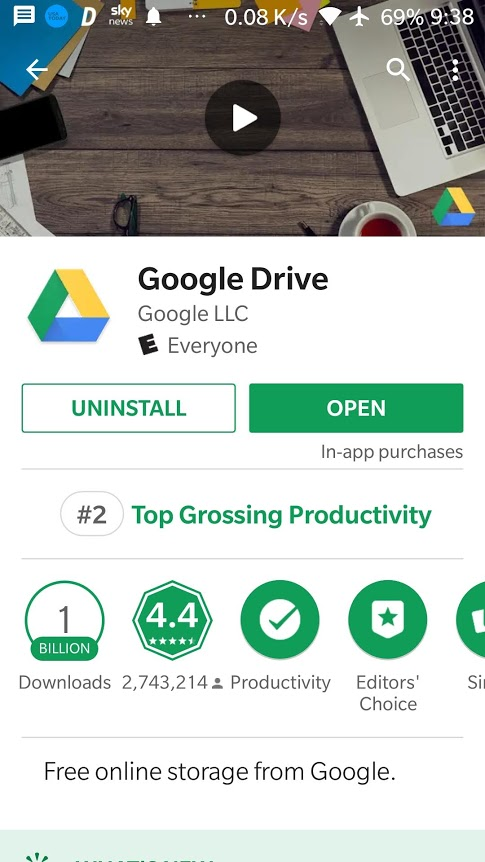
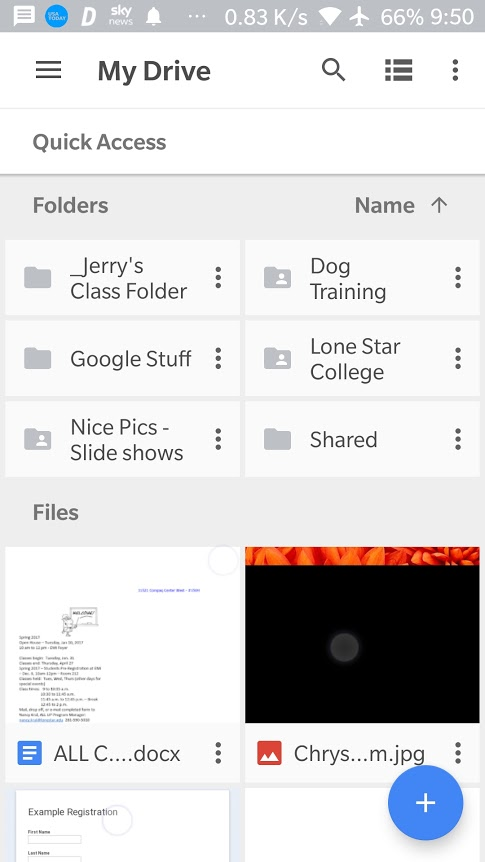
So now you have the app installed. Here is what it looks like for one of my accounts.
It shows folders at the top and some documents listed below. If you are not familiar I will leave it to you to explore and learn about. Our purpose now is to scan a document and put it there.
Notice the blue circle with the plus sign in the lower right corner. That is where you can create new documents (word docs, spreadsheets, or slide presentations). If you touch it to open you will see the following choices pop up.
The choice we are interested in is the “Scan” option. If you touch that you will see the camera open up with a live view to take a photo. But it’s not just a photo - it is a document scanner.
So you want to place a document that you want to scan on a surface with a contrasting background. The app needs some contrast to define the edges of the document. If it is a white piece of paper on a light background it can’t tell where the document begins or ends.
There is also a bit of technique to it and you should try a few times to get used to using it. For example, if you hold the phone directly over the document sometimes the sensors in the phone will think you have rotated it and the photo of your document will be upside down. The technique is to hold your phone over the document but keep it at a shallow angle. This will produce an image with a “keystone” shape but the software expects that and will automatically correct it.
Here is a view of a sample document that I have place on a red rubbermaid lid.
And here is the photo that it took:
Notice that the app has corrected the color and the shape. Amazing! Now it gives you 3 options at the bottom. On the left the plus sign means “take another pic of another page and add it to the current file.” That is useful if you have several pages and want them all to be in the same PDF file. The center icon (the little circle with an arrow) means retake the photo again (in case it is out of focus or you didn’t center it right or whatever). And the checkmark on the right means save it now.
After you save it you will see a new document with title of “scanned_yyyymmdd-hhmm.pdf”. That is the date and time that you scanned it. You really should give it a proper name now or all your various scans will become jumbled and you won’t know which is what.
So touch the little 3 dot menu on the right and the following menu screen will pop up. Actually, to see these choices you need to scroll down a little bit. What you are looking for now is the ‘rename’ option. Touch that and overwrite the ‘scanned’ part and give it a descriptive name. I like to keep the date in the filename so I know when I created it.
Now, after you have given it a proper name, you can open this menu again and see if you want to move the PDF to another folder, print it, download it, or most likely ‘send a copy’ to someone. Or another way to do that is to then flip to your Gmail account, create a new email, then attach this new PDF to that email and send it that way.
So there you have it. Very useful! If you do that a few times you will see how quick and easy it is!
Finally, another tip. Remember that this is a PDF document now, not just a photo. And Google will “OCR” the document so the text inside is searchable. That means after you create a lot of documents (of all types) you can type into the search bar at the top a few keywords and Google will search all of your documents including all your PDFs! Very powerful!
I have scanned store receipts, product information manuals, info sheets in stores on products I might want to buy, medical records and EOBs, car registrations, insurance, titles, and many, many more. I have many hundreds of documents in my Drive!
I hope you find this as useful as I have over the years!